How to Use Shortcode in WordPress
Shortcodes in WordPress are powerful tools that allow you to add dynamic content to your pages, posts, or widgets effortlessly. They are small bits of code enclosed in square brackets [ ], which WordPress interprets and executes. This guide will walk you through everything you need to know about shortcodes — from understanding what they are to creating and using them effectively.
Shortcodes are placeholders that execute predefined PHP functions, enabling you to add complex functionalities without writing long code snippets. For example, the [gallery] shortcode displays a photo gallery, while embeds audio files.
How to Add Custom Shortcodes
Sometimes, the built-in shortcodes may not meet your needs. You can create your own custom shortcode using PHP. You can add this code to functions.php file.
Add the Custom Shortcode:
function hello_world_shortcode(): string
{
    return "Hello, World!";
}
add_shortcode('hello', 'hello_world_shortcode');
Use Your Shortcode:
- Open the editor for your post or page and look for the “Shortcode” block.
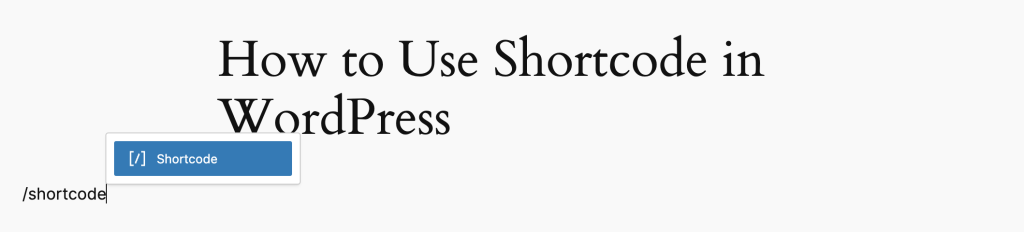
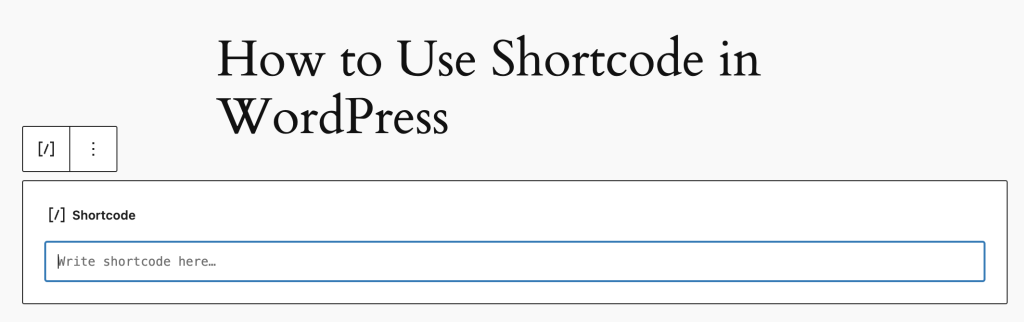
- Place the shortcode in the appropriate field where you want it to be displayed.
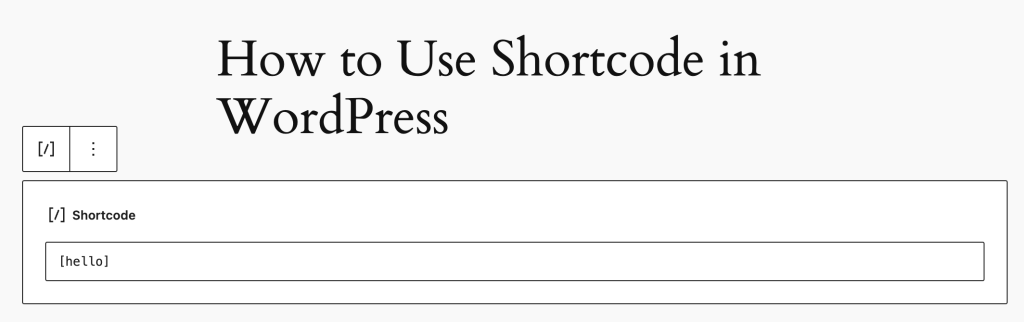
Shortcode with Attributes
You can make your custom shortcode more dynamic by adding attributes.
function custom_greeting_shortcode( array $atts ): string
{
    $atts = shortcode_atts(
        [
            'name' => 'Guest'
        ],
        $atts
    );

    return "Hello, " . esc_html( $atts['name'] ) . "!";
}
add_shortcode('greet', 'custom_greeting_shortcode');- Insert the Shortcode with Attributes
Use the shortcode like this in the editor: [greet name=”Pandda”] - View the Output
The page will display: Hello, Pandda!
Generating Output in Shortcodes
Shortcodes in WordPress expect their output to be returned as a string. If you directly use echo or other output-generating functions, the content may appear at unexpected locations on the page.
Using ob_start() and ob_end_clean() enables you to capture the output and return it correctly. Here’s how it works:
ob_start(): Starts output buffering. Anything that would normally be output (e.g., viaecho) is captured into an internal buffer.- Code generates output (e.g., HTML or text).
ob_get_clean()orob_end_clean(): Stops buffering and retrieves the buffer content as a string, which is then returned by the shortcode.
For shortcodes generating complex HTML with loops, conditions, or templates, output buffering simplifies the workflow. Instead of concatenating strings manually or embedding inline PHP, you can write HTML as you would in a template file.
function my_custom_shortcode( array $atts ): bool|string
{
    $atts = shortcode_atts(
        [
            'title' => 'Custom content',
        ],
        $atts
    );

    ob_start(); // Start buffering

    // Here we can use get_template_part
    // or output data with echo or another function
    // or close php tag ?> and start write clean html

    return ob_get_clean(); // Return the buffered content
}
add_shortcode('my_shortcode', 'my_custom_shortcode');
An example for using buffering if you are using the Divi theme, without buffering the content will be rendered at the beginning of the page.
Using Shortcodes with Content Inside
Some shortcodes are designed to wrap around content, allowing you to apply styling or functionality to a specific portion of your text or other elements.
function highlight_content_shortcode( array $atts, string|null $content = null ): bool|string
{
    ob_start(); // Start buffering

    echo '<span class="highlight">' . do_shortcode( $content ) . '</span>';

    return ob_get_clean(); // Return the buffered content
}
add_shortcode('highlight', 'highlight_content_shortcode');
Use the Shortcode in Your Editor:[highlight]Make this text stand out![/highlight]
Output:<span class="highlight">This text will be highlighted.</span>
Using Shortcodes in PHP
To output a shortcode via PHP code, you need to use the do_shortcode() function:
echo do_shortcode('[hello]');or shortcode with content in it
echo do_shortcode('[highlight]Make this text stand out![/highlight]');

// or

echo do_shortcode('[highlight]' . get_bloginfo() . '[/highlight]');
Shortcodes are an essential feature in WordPress for adding dynamic functionality. Whether you’re using built-in or custom shortcodes, the process is simple and user-friendly. Follow the steps above to start incorporating shortcodes into your WordPress site today!