How to Get WooCommerce URLs (Cart, Checkout, Shop, My Account) Programmatically in WordPress
WooCommerce makes it easy for developers to programmatically fetch critical URLs like Cart, Checkout, Shop, and My Account pages. This ensures your code remains dynamic and adapts to any changes in WooCommerce settings.
How to Find the Shop URL in the Dashboard
If the shop URL has been modified or you’re unsure of its exact location, you can find it in your WordPress admin dashboard by following these steps:
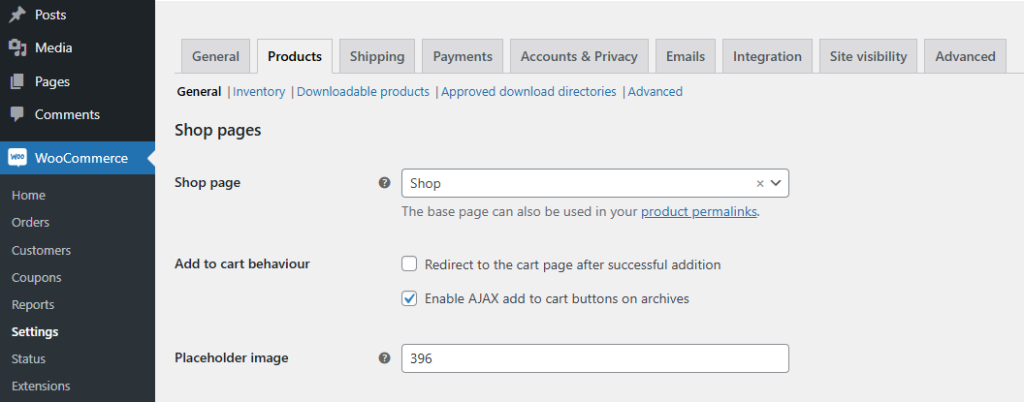
Look for the Shop Page field, where the assigned page for your shop is listed. Clicking on it will direct you to the editor where the full URL is displayed.
- Go to WooCommerce > Settings.
- Open the Products tab.
- Look for the Shop Page field, where the assigned page for your shop is listed. Clicking on it will direct you to the editor where the full URL is displayed.
In addition to the shop page, WooCommerce allows you to assign pages for other functionalities, such as Cart, Checkout, My Account, and Terms & Conditions. You can find these pages by navigating to the Advanced tab in the WooCommerce settings:
- Go to WooCommerce > Settings.
- Click on the Advanced tab.
- Here, you’ll see the URLs assigned for these critical pages under the respective settings.

When You Need to Retrieve WooCommerce URLs Programmatically
While finding the URLs in the dashboard is helpful, there are scenarios where you may need to dynamically fetch these URLs in your code, such as when creating custom links or performing URL validations.
In the next section, we’ll show you how to retrieve the Shop URL programmatically and share some additional useful tips for working with WooCommerce URLs. Stay tuned! 🚀
Fetching WooCommerce URLs Programmatically
Get the Cart URL
WooCommerce provides the wc_get_cart_url() function to fetch the Cart page URL dynamically
// Get the Cart URL
$cart_url = wc_get_cart_url();

// Output the Cart URL
echo 'Cart URL: ' . $cart_url;
Get the Checkout URL
The wc_get_checkout_url() function retrieves the URL for the Checkout page.
// Get the Checkout URL
$checkout_url = wc_get_checkout_url();

// Output the Checkout URL
echo 'Checkout URL: ' . $checkout_url;
Get the Shop URL
The Shop page is typically the main page for displaying all products. WooCommerce offers the get_permalink() function to get the URL of the Shop page using its page ID:
// Get the Shop URL
$shop_url = get_permalink(wc_get_page_id('shop'));

// Output the Shop URL
echo 'Shop URL: ' . $shop_url;
Alternatively, you can use wc_get_page_permalink() for consistency across WooCommerce-specific pages:
// Get the Shop URL
$shop_url = wc_get_page_permalink('shop');

// Output the Shop URL
echo 'Shop URL: ' . $shop_url;
The Default WooCommerce Shop Page URL
By default, the shop page for a WooCommerce store is located at your site’s base URL followed by /shop. For example, a typical shop URL might look like this:
https://yourwebsite.com/shop
This is usually the default setup unless you’ve made custom changes. In most cases, this makes it straightforward to identify the shop URL of an eCommerce store built with WooCommerce.
Get the My Account URL
The My Account page is where users can manage their orders, addresses, and account details. Use wc_get_page_permalink('myaccount') to fetch its URL.
// Get the My Account URL
$my_account_url = wc_get_page_permalink('myaccount');

// Output the My Account URL
echo 'My Account URL: ' . $my_account_url;
Combine All URLs in a Navigation Menu
Here’s an example of a navigation menu with links to Cart, Checkout, Shop, and My Account:
echo '<nav>';
echo '<a href="' . wc_get_cart_url() . '">Cart</a>';
echo '<a href="' . wc_get_checkout_url() . '">Checkout</a>';
echo '<a href="' . wc_get_page_permalink('shop') . '">Shop</a>';
echo '<a href="' . wc_get_page_permalink('myaccount') . '">My Account</a>';
echo '</nav>';
Common Use Cases for WooCommerce URLs
Redirect Users
Redirect users to pages like Cart, Checkout, Shop, or My Account after specific actions.
// Redirect to My Account page
wp_redirect(wc_get_page_permalink('myaccount'));
exit;
Add Buttons
Include buttons for navigating to WooCommerce pages in your templates or widgets.
<a href="<?php echo wc_get_page_permalink('shop'); ?>" class="button">Shop Now</a>
<a href="<?php echo wc_get_cart_url(); ?>" class="button">View Cart</a>
<a href="<?php echo wc_get_checkout_url(); ?>" class="button">Proceed to Checkout</a>
<a href="<?php echo wc_get_page_permalink('myaccount'); ?>" class="button">My Account</a>
Wrapping Up
Fetching WooCommerce URLs programmatically for Cart, Checkout, Shop, and My Account is a best practice for ensuring your site remains dynamic and adaptable. This approach prevents potential issues when users change page slugs or settings.